

Download Shotty – Free, Secure Screenshot Tool for Windows & Mac with Instant Online Sharing
Shotty is a lightweight, intuitive screenshot tool designed for users who need to capture and share images online quickly and efficiently. Whether you're a content creator, student, or professional, Shotty simplifies the process of capturing screen content and uploading it directly to popular image hosting platforms. With support for full-screen, window, and custom area captures, Shotty delivers precision and speed.
Its minimal system footprint ensures it runs smoothly on both Windows and Mac systems, while its built-in editor allows for quick edits like cropping, blurring, and annotations. The standout feature? Instant online sharing via services like ImageShack.us, Twitpic.com, and DirectUpload.net—ideal for social media, forums, or collaborative workspaces.
Shotty is completely free to download and use, making it a top choice for anyone seeking a no-frills, reliable screenshot utility.
Key Features of Shotty – Why It Stands Out
Shotty distinguishes itself in the crowded screenshot tool market with a smart blend of essential features and seamless integration with online sharing platforms. One of its most praised features is the ability to capture the entire screen, a specific window, or a user-defined area with just a single click. This flexibility makes it perfect for both quick snapshots and detailed documentation. The tool operates quietly in the system tray, ensuring it doesn’t interfere with your workflow while remaining instantly accessible. A left-click on the icon activates the capture function, while a right-click opens a context menu with customizable settings, including hotkey assignments and upload preferences.
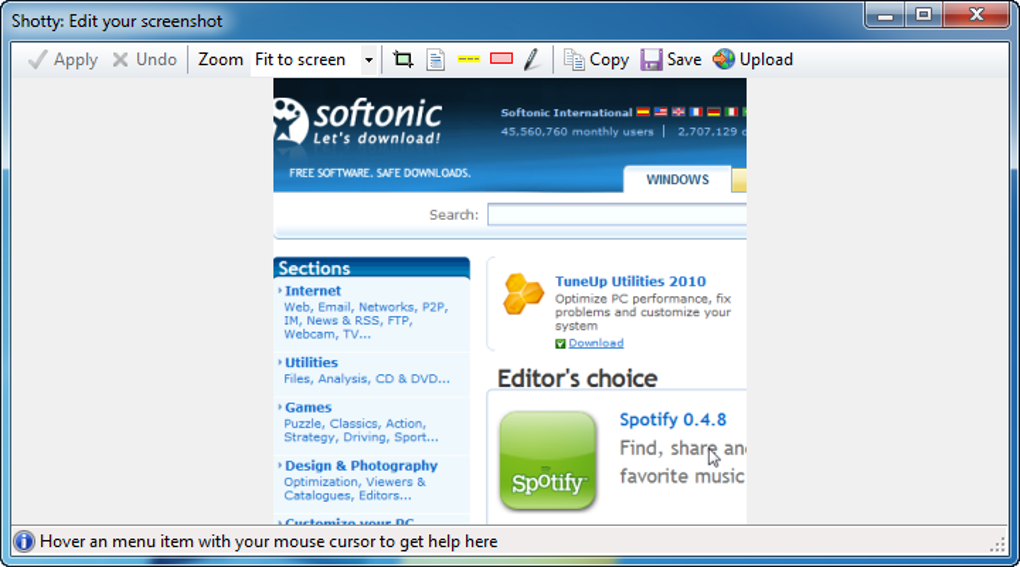
Another highlight is the built-in image editor, which offers basic but effective tools for post-capture editing. You can crop images, add blur effects to sensitive data, and use annotation tools to highlight key areas—ideal for tutorials, bug reporting, or sharing feedback. The support for transparency in Windows 7 and Vista is a subtle yet powerful feature, especially for designers and developers who need to preserve alpha channels when saving as PNG files. This ensures your images remain editable in tools like Photoshop or GIMP.
Perhaps the most compelling feature is Shotty’s instant online sharing capability. Instead of saving the image locally and manually uploading it, Shotty allows you to send your screenshot directly to supported platforms like ImageShack.us, Twitpic.com, and DirectUpload.net with just a few clicks. This is a game-changer for users who frequently share visual content on social media, forums, or messaging apps. While the upload function occasionally requires enabling the “Show configuration before upload” option for reliability, the overall experience remains smooth and efficient. For users who value speed and simplicity, Shotty delivers exactly what it promises: a no-hassle way to capture and share.
How to Install and Use Shotty on Windows & Mac
Getting started with Shotty is a breeze, whether you're on a Windows PC or a Mac. Begin by visiting the official download page and selecting the appropriate version for your operating system—Windows (32-bit or 64-bit) or macOS. The installer is lightweight, typically under 5MB, and installs in seconds. Once installed, Shotty automatically launches and appears in the system tray (Windows) or menu bar (Mac), ready for use.
To capture a screenshot, simply click the Shotty icon and choose your desired capture mode: Full Screen, Active Window, or Custom Area. The custom area option lets you drag and select any portion of your screen, giving you precise control over what gets captured. After capturing, you’re presented with the built-in editor, where you can crop, blur, or add text and arrows to emphasize important details. This editing phase is intuitive and doesn’t require advanced skills—perfect for beginners and casual users.
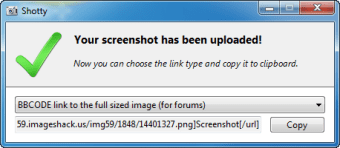
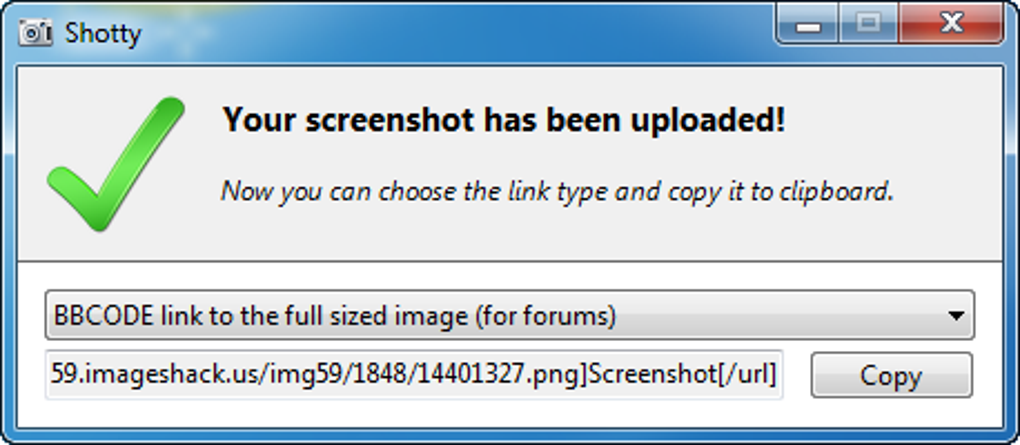
Once satisfied with your image, you can save it locally or upload it directly. To share online, select the “Upload” option from the menu. Shotty will prompt you to choose a hosting service and, if needed, show the configuration window. After the upload completes, you’ll receive a direct link to the image, which you can copy and paste into emails, chats, or posts. The entire process—from capture to sharing—takes less than 10 seconds, making Shotty ideal for real-time collaboration and fast content creation.
Compatibility & System Requirements
Shotty is designed for broad compatibility, supporting both major operating systems: Windows 7 and later, including Windows 10 and Windows 11, as well as macOS 10.12 (Sierra) and newer versions. This ensures that users across a wide range of devices can benefit from its features without compatibility issues. The software is optimized for low system resource usage, meaning it won’t slow down your computer even during extended use. It runs in the background with minimal impact on CPU and memory, making it suitable for older machines or systems with limited RAM.
For Windows users, Shotty supports transparency effects in Windows 7 and Vista, a feature that enhances the usability of PNG files for graphic design and web development. This is particularly useful when you need to overlay images or create transparent icons. On Mac, the app integrates smoothly with the system’s menu bar and leverages native graphics APIs for fast rendering. No additional software or drivers are required—just install, launch, and start capturing.
Shotty is also compatible with multiple monitor setups, allowing you to capture content from any connected display. Whether you’re working on a dual-screen workstation or a laptop with an external monitor, Shotty adapts seamlessly. The tool is available as a free download with no trial limitations or hidden costs. Regular updates are released to improve stability, fix bugs, and enhance compatibility with new OS versions, ensuring long-term usability.
Pros and Cons of Using Shotty
- Pros:
- Lightweight and fast—minimal impact on system performance
- Instant online sharing via ImageShack.us, Twitpic.com, and DirectUpload.net
- Simple, intuitive interface with minimal learning curve
- Supports transparency in PNG files (Windows 7/Vista)
- Built-in editor for quick cropping, blurring, and annotations
- Free to download and use with no watermarks or ads
- Works on Windows 7+ and macOS 10.12+
- Cons:
- Upload feature can be inconsistent without enabling “Show configuration before upload”
- Limited to a fixed set of hosting platforms (no custom upload options)
- No cloud storage integration (e.g., Dropbox, Google Drive)
- Lacks advanced features like video capture or scheduled screenshots
- Interface is minimal—some users may miss customization options
Frequently Asked Questions (FAQ)
-
Is Shotty free to download and use?
Yes, Shotty is completely free to download and use. There are no trial periods, hidden fees, or watermarks on captured images. The software remains fully functional without requiring a paid upgrade.
-
Can I use Shotty on both Windows and Mac?
Yes, Shotty is available for both Windows (7 and later) and macOS (10.12 and newer). You can download the appropriate version for your system from the official website.
-
Does Shotty support video recording?
No, Shotty is focused solely on screenshot capture and sharing. It does not include video recording capabilities. For screen recording, consider tools like oCam or FastStone Capture.
-
How do I fix upload issues in Shotty?
If the upload feature isn’t working, go to the settings and enable the “Show configuration before upload” option. This often resolves connectivity or timeout issues with the hosting platforms.
-
Can I save screenshots locally without uploading?
Absolutely. Shotty allows you to save your captured images directly to your computer. You can choose the file format (PNG, JPG, etc.) and location before saving, giving you full control over your files.
Final Verdict: Is Shotty Worth Downloading?
Shotty is an excellent choice for anyone who needs a fast, reliable, and free screenshot tool with instant online sharing. Its minimal design, low system requirements, and seamless integration with popular image hosting services make it ideal for students, professionals, and content creators alike. While it lacks advanced features like video capture or cloud integration, it excels in its core purpose: capturing and sharing images in seconds.
If you’re tired of the hassle of saving screenshots and manually uploading them, Shotty streamlines the entire process. The built-in editor adds value without overwhelming users, and the support for transparency ensures high-quality output for creative projects. With regular updates and strong cross-platform compatibility, Shotty remains a dependable tool for modern workflows.
Ready to simplify your screenshot workflow? Download Shotty today for free and experience the power of instant capture and sharing on Windows and Mac.







